1. Prepare the two files
Keep the original and modified files in locations that are easy to identify. If one copy is important, create a backup before making any edits. File names can help you remember which side is the reference and which side may be changed.
HexCmp compares the raw data, so the two files do not need to be plain text. They can be executables, libraries, firmware images, archives, documents or other binary formats.
2. Open both files in HexCmp
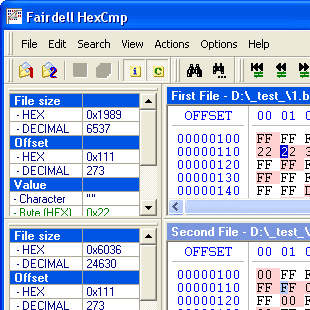
Load the first and second files into the comparison panes. HexCmp displays their hexadecimal values and text representations side by side.
Begin at the first visible difference or move directly to an area you already know. The highlighting distinguishes changed data from matching regions.
3. Navigate the changed blocks
Use difference navigation to jump from one changed block to the next. Synchronized scrolling keeps the related positions visible on both sides, reducing the chance of comparing unrelated offsets.
Equal-block navigation can also be useful after a long changed region, because it shows where the two files begin matching again.
- Move to the next or previous different block
- Keep cursors synchronized between files
- Scroll both files together
- Switch to text comparison when appropriate
4. Inspect the exact data
Place the cursor on a byte that needs closer examination. The Info Panel can display the value as a character, byte, word or dword. This is useful when the change represents a number, flag, identifier or format field.
Check the bytes before and after the selection. The surrounding context often reveals whether a difference is part of a header, a repeated structure, embedded text or a larger changed region.
5. Search for a known sequence
When you know the text or hexadecimal sequence you are looking for, use Search instead of scanning the entire file. Text search can find readable strings, while hex search can locate exact byte patterns.
After locating the sequence on one side, compare the corresponding position on the other file and examine whether the value, length or surrounding structure changed.
6. Edit only when necessary
If the task requires a modification, edit the relevant bytes in HexCmp. Keep the reference file visible and make small, controlled changes. Undo and Redo are available, but a backup remains the safest way to protect important data.
Save the edited file, reopen or recompare it if needed, and confirm that the intended bytes now match or differ as expected.
A practical comparison checklist
- Confirm which file is the original
- Back up any file you may edit
- Review every changed block, not only the first
- Use the Info Panel to interpret selected values
- Search for known text or byte sequences
- Verify the result after saving changes
System requirements
HexCmp 2 supports Windows 95, 98, ME, NT, 2000, XP, Vista, 7, 8, 10 and 11. Files up to 4 GB are supported. The free trial lets you test the workflow before purchasing the $49.95 single-user license.